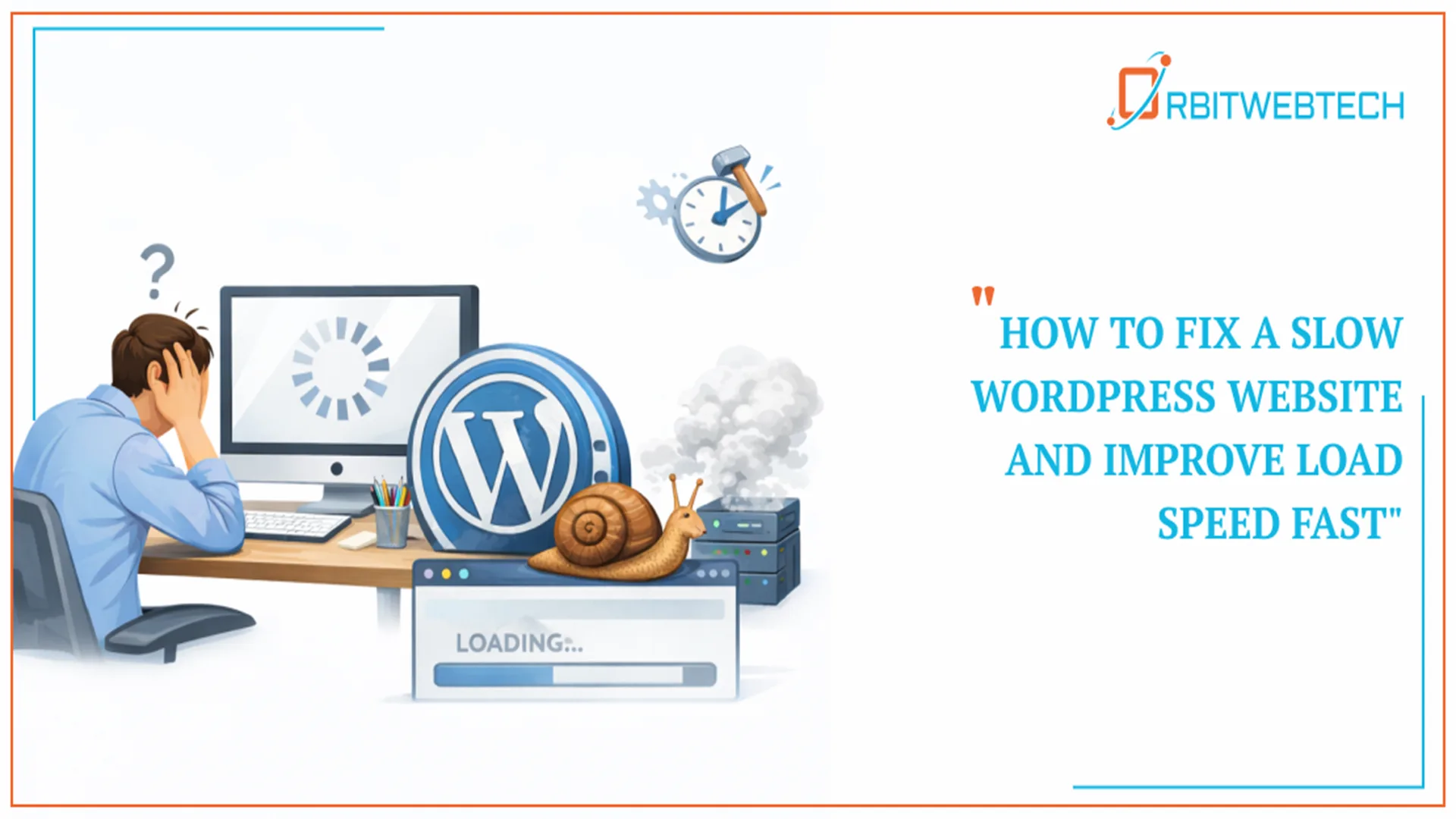
Is your WordPress website loading slowly? A slow website not only frustrates users but also damages your search rankings, conversion rate, and overall revenue. Whether you are running a business website, WooCommerce store, or blog, WordPress website speed optimization is no longer optional.
In this complete guide, you will learn how to fix a slow WordPress website step by step, improve Core Web Vitals, and significantly reduce page load time for users in the USA, UK, Germany, and across Europe.
Why Is My WordPress Site Slow?
Before fixing the issue, you must identify the root cause. Common reasons include:
- Poor quality hosting
- No caching setup
- Heavy themes
- Too many plugins
- Unoptimized images
- No CDN integration
- Large database
- Unoptimized code (CSS/JS)
- No server-level optimization
Most slow WordPress websites suffer from a combination of these issues.
Step 1: Choose High-Performance Hosting
Your hosting provider is the foundation of website performance.
If your server response time (TTFB) is high, no plugin can fully fix it.
What to Look for in Hosting:
- LiteSpeed or NGINX servers
- SSD or NVMe storage
- Built-in caching
- PHP 8.2 or higher
- Data centers in USA, UK, or Germany
- HTTP/3 support
Why Server Location Matters
If your target audience is in:
- USA → Choose US data centers
- UK → Choose London-based servers
- Germany/Europe → Choose Frankfurt or EU-based servers
Closer server location = lower latency = faster loading time.
Step 2: Enable Caching Properly
Caching reduces server load and improves WordPress load time dramatically.
Recommended Caching Methods:
- Page caching
- Object caching (Redis/Memcached)
- Browser caching
- Opcode caching
Popular WordPress Caching Plugins:
- WP Rocket
- LiteSpeed Cache
- W3 Total Cache
- FlyingPress
Proper caching alone can reduce load time by 40–60%.
Step 3: Optimize Images (Major Speed Factor)
Images are often the biggest reason for slow WordPress websites.
Best Practices:
- Convert images to WebP or AVIF
- Compress images before uploading
- Enable lazy loading
- Use correct image dimensions
- Serve responsive images
Tools for Image Optimization:
- ShortPixel
- Imagify
- TinyPNG
- EWWW Image Optimizer
Large hero images and banners especially impact LCP (Largest Contentful Paint), which is a Core Web Vitals metric.
Step 4: Minify and Combine CSS & JavaScript
Render-blocking CSS and JS delay page load.
Actions to Take:
- Minify CSS
- Minify JavaScript
- Remove unused CSS
- Defer non-critical JS
- Delay third-party scripts (chat widgets, tracking tools)
This directly improves:
- First Contentful Paint (FCP)
- Largest Contentful Paint (LCP)
- Interaction to Next Paint (INP)
Step 5: Reduce Plugin Bloat
Too many plugins increase server processing time.
What You Should Do:
- Remove inactive plugins
- Delete heavy page builder add-ons
- Avoid duplicate functionality plugins
- Replace multiple plugins with one optimized plugin
Use tools like Query Monitor to detect slow plugins.
Step 6: Optimize Your WordPress Database
Over time, WordPress databases accumulate:
- Post revisions
- Spam comments
- Transients
- Orphaned metadata
Clean Database Using:
- WP Optimize
- Advanced Database Cleaner
A clean database improves backend performance and reduces server queries.
Step 7: Use a Content Delivery Network (CDN)
A CDN distributes your content globally, reducing latency.
Best CDN Options:
- Cloudflare
- Bunny.net
- StackPath
For websites targeting:
- USA → Use US edge locations
- UK → London edge
- Germany/Europe → Frankfurt or Amsterdam nodes
CDNs also improve Core Web Vitals and provide security benefits.
Step 8: Enable GZIP or Brotli Compression
Compression reduces file size before sending it to the browser.
Most high-performance hosting providers enable Brotli automatically.
Check using:
- GTmetrix
- PageSpeed Insights
Step 9: Upgrade PHP Version
Outdated PHP versions slow down performance.
Always use:
- PHP 8.1 or 8.2
This alone can improve performance by 15–20%.
Step 10: Improve Core Web Vitals for WordPress
Google ranking heavily depends on Core Web Vitals:
Key Metrics:
- LCP (Largest Contentful Paint) – under 2.5 seconds
- CLS (Cumulative Layout Shift) – under 0.1
- INP (Interaction to Next Paint) – under 200ms
How to Improve Them:
- Optimize above-the-fold content
- Preload important fonts
- Use lightweight themes
- Reduce layout shifts
- Avoid heavy sliders
Step 11: Use a Lightweight WordPress Theme
Avoid bloated multipurpose themes.
Recommended lightweight themes:
- Astra
- GeneratePress
- Kadence
- Block-based themes
Heavy themes increase CSS and JS load significantly.
Step 12: Disable Unused Features
Remove:
- Emojis
- Embed scripts
- Unused widgets
- Google Fonts if not optimized
Each small optimization adds up.
Tools to Test WordPress Website Speed
Use these tools regularly:
- Google PageSpeed Insights
- GTmetrix
- WebPageTest
- Lighthouse (Chrome DevTools)
Monitor performance separately for:
- USA location
- UK location
- Germany location
How Fast Should a WordPress Website Load?
Ideal benchmarks:
- Under 2 seconds (excellent)
- 2–3 seconds (acceptable)
- Above 3 seconds (needs improvement)
Studies show that every 1-second delay can reduce conversions by up to 7%.
When to Hire a WordPress Speed Optimization Expert
If you experience:
- Persistent high bounce rate
- Failed Core Web Vitals
- Slow WooCommerce checkout
- Backend admin panel lag
- High server CPU usage
Then professional WordPress performance optimization services may be necessary.
WordPress Speed Optimization Checklist
✔ Upgrade hosting
✔ Enable caching
✔ Optimize images
✔ Minify CSS/JS
✔ Use CDN
✔ Clean database
✔ Upgrade PHP
✔ Remove unused plugins
✔ Improve Core Web Vitals
Final Thoughts
Fixing a slow WordPress website requires a structured technical approach. From server optimization and caching to image compression and Core Web Vitals improvements, every factor contributes to performance.
For businesses targeting the USA, UK, Germany, or wider Europe, server location and CDN configuration play a critical role in load speed.
Website speed directly impacts:
- SEO rankings
- User experience
- Conversion rate
- Revenue growth
If your WordPress site is slow, start implementing these steps today and monitor performance improvements consistently.
Frequently Asked Questions
Frequently Asked Questions
A WordPress website is usually slow due to poor hosting, no caching, heavy themes, too many plugins, or unoptimized images. Multiple small issues together often cause slow load times.
Upgrade your hosting, enable caching, optimize images, minify CSS and JavaScript, use a CDN, and update to the latest PHP version. These steps quickly improve performance.
Yes. Website speed affects SEO because Google considers Core Web Vitals a ranking factor. Faster websites rank better and reduce bounce rates.
The ideal load time is under 2 seconds. Websites loading over 3 seconds need optimization.
If you target users in different countries like the USA, UK, or Europe, a CDN helps reduce latency and improves load speed.